

Time reporting with scheduled and actual hours on the same row
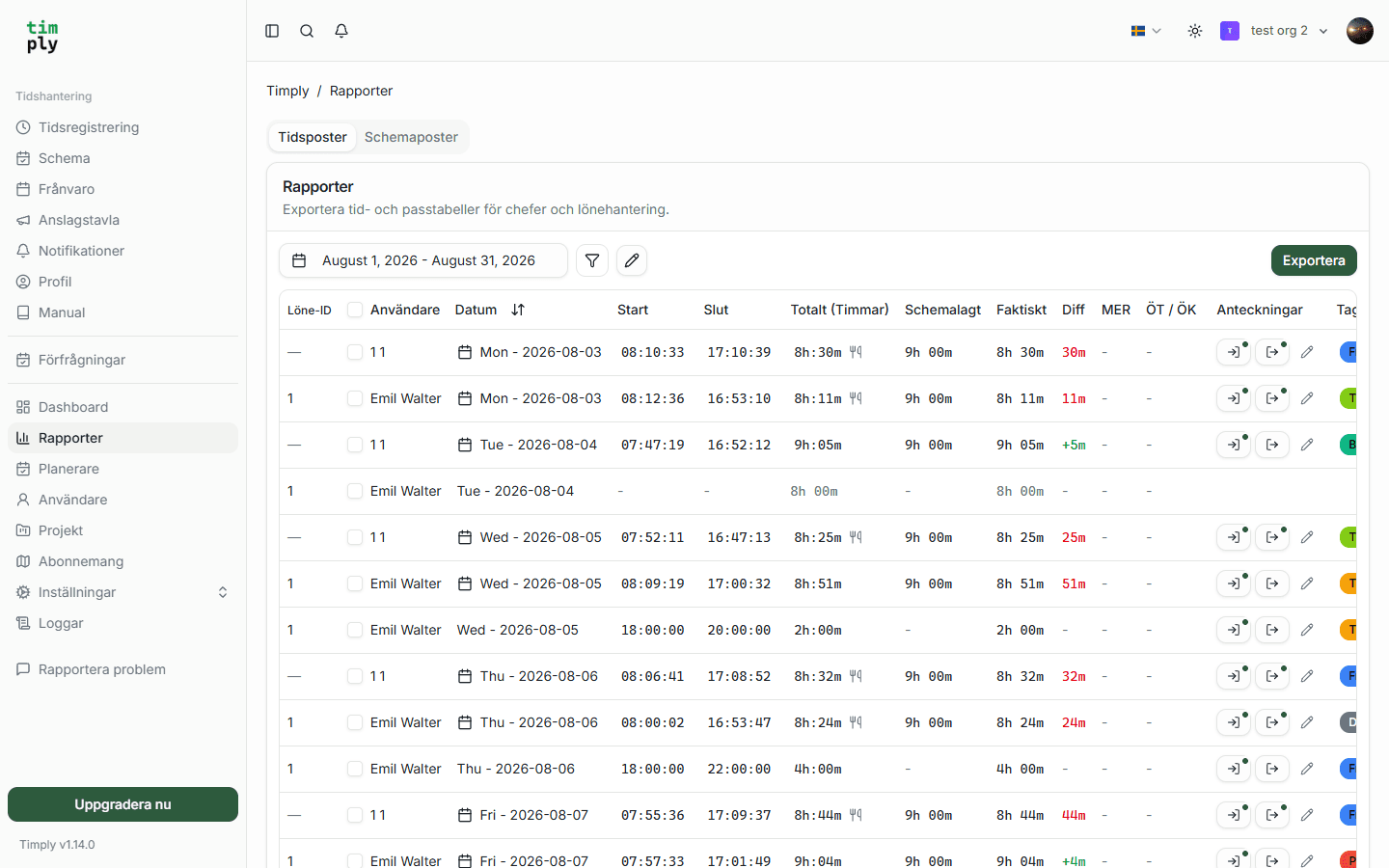
One row per employee and day, with the hours scheduled, the hours worked and the difference between them. Deviations are visible the same day rather than at the end of the month.
- Part of
Time
- Included in
Core · Pro · Enterprise
- Available on
Browser · iPhone · Android
What you get
Scheduled against actual is on one row, so a difference does not have to be looked for.
A manager approves the days that differ and leaves the rest alone.
Every change keeps who made it and when.
One row, both numbers
A time report that only shows hours worked answers half a question. The other half is what was supposed to happen, and the useful number is the distance between the two.
Timply puts the scheduled time, the worked time and the difference on the same row, per employee and per day. A shift that ran forty minutes long is a forty minute figure on the row, with no second tab to open.
Approving what differs
The point of the difference column is that a manager reads the days that differ and leaves the rest alone. Approval can be given per day or for a whole period, and it records who approved and when.
That record is what the payroll file carries through as an approved period, so payroll can see the basis was signed off.
Corrections keep the original
A time that is edited does not overwrite what was there. The original is kept next to the new value with the change recorded, which means a question about a figure three months later has an answer.
What Timply does not yet have is an approval step for the change itself. An edit is logged, but it does not go out for a second sign-off. That is a known gap and it is planned.
Time against a project
In Pro, a job is set up as a project with participants, and time is reported against the project as it is recorded. The week then reads two ways: as a person's working time, and as hours drawn down on a job.
The report separates mertid, the hours a part-timer works above their contract, from overtime, and gives every OB category its own column. OB is the Swedish unsocial-hours premium, and Timply splits it across your categories for you.
How it works in Timply
- Row
One per employee and day, with start, end and break
- Comparison
Scheduled time, worked time and the difference on the same row
- Source
Clocked in the app or in the browser, or entered afterwards
- Approval
A manager approves a day or a period, with decision maker and time recorded
- Correction
An edited time keeps the original alongside it, so the change stays visible
- Projects
Time reported against a project with participants
Pro - Period
Any date range, day, week, month or your own payroll period
Common questions
Does an employee have to clock in, or can time be entered afterwards?
Both. Time can be clocked in and out in the app or the browser, or entered afterwards with a start and an end. Both end up in the same time report.
What happens if somebody forgets to clock out?
The day shows as open in the report and can be corrected. The correction keeps the original time alongside it, so the edit stays visible.
Can we see who changed a time?
Yes. Every change records who made it and when, and the original value is kept.
Does the report show anything other than hours?
It shows scheduled time, worked time, the difference, mertid, overtime, time off in lieu and a column per OB category.
Which plan includes time reporting?
All of them. Time reporting and the clock are in Core. Project time and the payroll file are in Pro.
More features
A digital time clock in the phone or on a shared terminal
Staff clock in and out in the app or the browser. The time is recorded against the server as it happens, so it is not written down and typed up later.
Lay out the week and publish it
Create shifts, staff them and see straight away which ones are unstaffed. Everyone gets their own schedule on their phone the second it is published.
Reports with a column per figure, and an Excel export
One row per day and employee, with scheduled time, worked time, the difference, mertid, overtime, time off in lieu and a column per OB category.
A payroll file your payroll system imports without rework
Worked hours, OB, overtime, mertid and absence are totalled per employee and given the right payroll code. You download a PAXml 2.0 file and import it.
This feature is part of Timply's system for scheduling, time tracking and payroll files. See all features
Try Timply with your own staff
Set it up yourself with your real schedule and your real staff. If you would prefer someone to walk you through it, book a demo.
- Trial
- 14 days
- Credit card
- Not required
- Refund
- Within 30 days of purchase