

OB, split by the hours and weekdays you set
You enter the windows your collective agreement uses. Timply divides every clocked hour between them and books each part to the payroll code it belongs to.
- Part of
Time
- Included in
Core · Pro · Enterprise
- Available on
Browser
- Monday to Friday18:00 to 23:59
- Saturday14:00 to 23:59
- Sunday12:00 to 23:59
What you get
Nobody adds up Saturday OB by hand before payroll runs.
A shift crossing a window boundary is split at the minute, with no rounding.
Each category carries the payroll code its hours are booked to.
What a category is
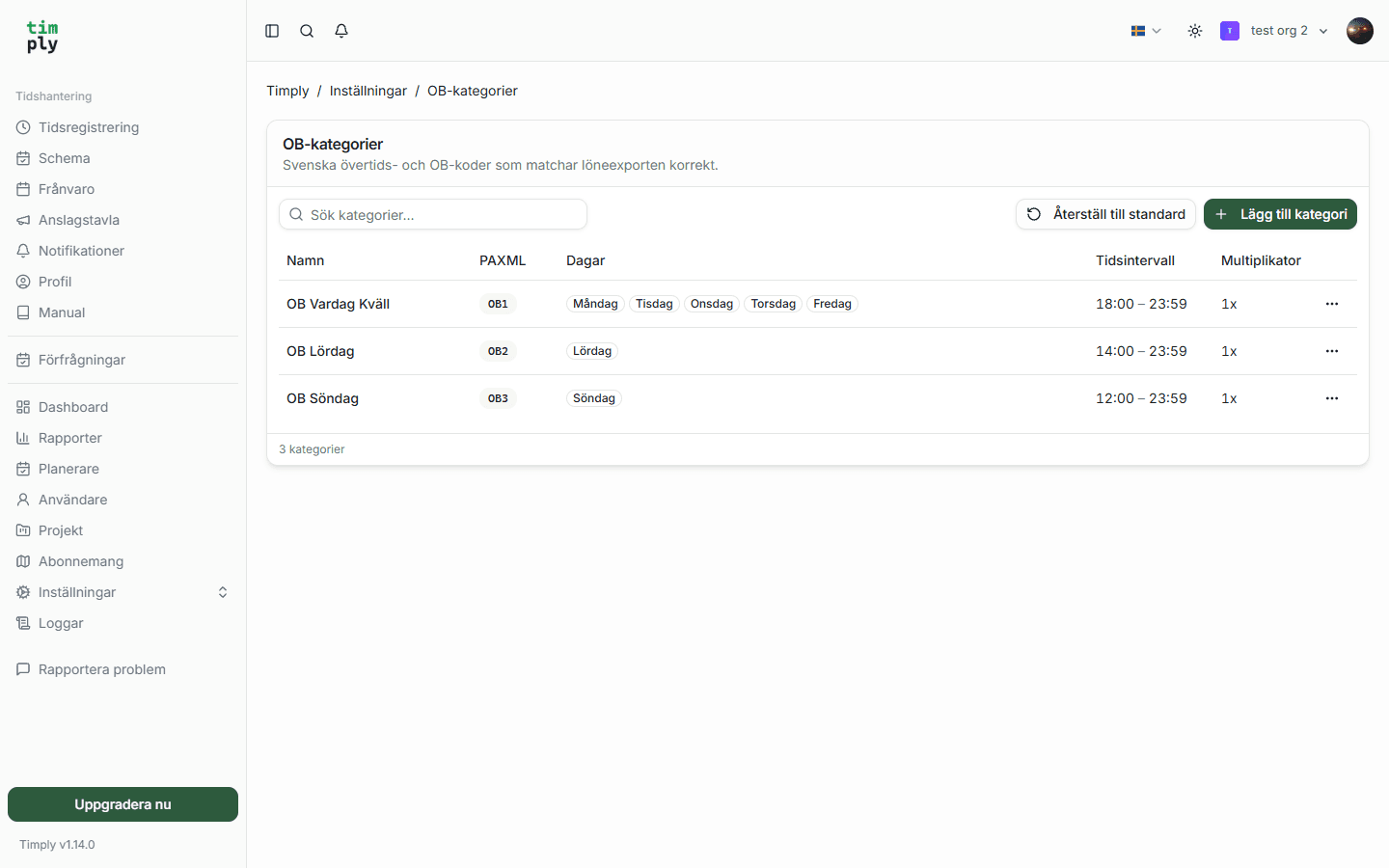
An OB category in Timply is four pieces of information: a name, which weekdays it applies to, which time window it covers, and which PAXml code its hours are booked to.
The set below follows common Swedish practice, and it is a starting point, not a rule. OB comes out of collective agreements, so the times that matter are the ones in yours.
| Category | Days | From | PAXml code |
|---|---|---|---|
| Weekday evening | Mon to Fri | 18:00 | OB1 |
| Saturday | Sat | 14:00 | OB2 |
| Sunday | Sun | 12:00 | OB3 |
Where the boundary falls
A shift that starts before a window opens is divided at the minute the window opens. From 16:00 to 22:00 on a Tuesday, with the weekday evening window starting at 18:00, four of the six hours fall inside the window and two fall outside it.
The OB hours sit on top of the hours worked. Six hours were worked, and four of them additionally carry OB, which is the shape a Swedish payroll system expects to receive.
Straight into the payroll file
Because each category carries its own code, no separate step turns OB hours into payroll lines. The payroll file is written with the hours already booked to OB1 through OB5, and the time report shows a column per category so the figures can be checked before the file is made.
How it works in Timply
- Category
A name, the weekdays it covers, the time window and a PAXml code
- Number
Up to five OB categories, OB1 to OB5
- Split
A shift crossing a boundary is divided at the minute between the two categories
- Default
Weekday evening from 18:00, Saturday from 14:00, Sunday from 12:00
- Factor
An optional multiplier per category
- Report
A column per category in the time report and in the Excel export
- Payroll
Booked to the category's own code in the PAXml file
Common questions
What is OB?
OB is short for obekväm arbetstid, the Swedish term for hours worked at inconvenient times. Most Swedish collective agreements pay an unsocial-hours premium for them. The name refers to when the work happens, and says nothing about the work itself.
What are the default windows?
Timply starts from common Swedish practice, with weekday evening from 18:00 Monday to Friday, Saturday from 14:00 and Sunday from 12:00. They are starting points that you change to your own times.
What happens to a shift that crosses a boundary?
It is divided at the minute. A shift from 16:00 to 22:00 with a window opening at 18:00 becomes four hours inside the window and two hours outside it.
Is OB set by law?
No. OB comes out of collective agreements, so both the windows and the rates are yours to enter. Timply ships a default set and expects you to change it.
Can we have more than five categories?
Five is the number PAXml carries as OB1 to OB5, so five is the number Timply exports.
More features
A payroll file your payroll system imports without rework
Worked hours, OB, overtime, mertid and absence are totalled per employee and given the right payroll code. You download a PAXml 2.0 file and import it.
Time reporting with scheduled and actual hours on the same row
One row per employee and day, with the hours scheduled, the hours worked and the difference between them. Deviations are visible the same day rather than at the end of the month.
Overtime or time off in lieu, chosen when the hours are recorded
The employee picks payment or time off at the moment the overtime is recorded, and the choice carries through to the payroll file as ÖT1 or ÖK1.
A digital time clock in the phone or on a shared terminal
Staff clock in and out in the app or the browser. The time is recorded against the server as it happens, so it is not written down and typed up later.
This feature is part of Timply's system for scheduling, time tracking and payroll files. See all features
Try Timply with your own staff
Set it up yourself with your real schedule and your real staff. If you would prefer someone to walk you through it, book a demo.
- Trial
- 14 days
- Credit card
- Not required
- Refund
- Within 30 days of purchase