

A payroll file your payroll system imports without rework
Worked hours, OB, overtime, mertid and absence are totalled per employee and given the right payroll code. You download a PAXml 2.0 file and import it.
- Part of
Payroll and export
- Included in
Pro · Enterprise
- Available on
Browser
What you get
The hours arrive in payroll already split by code, with nothing to recalculate by hand.
Every figure in the file traces back to a single clock-in.
The same file is read by Fortnox Lön, Visma Lön and Hogia Lön.
The problem is not the hours
Most time tracking systems can show how many hours somebody worked. That is the easy half. The hard half is turning those hours into something a Swedish payroll system imports without a person sitting down to work out which of them carried OB, the Swedish unsocial-hours premium, which were overtime, and which were mertid because the employee is part-time.
That work is where the errors come from, and it is the work Timply does before the file is written.
How the hours are split
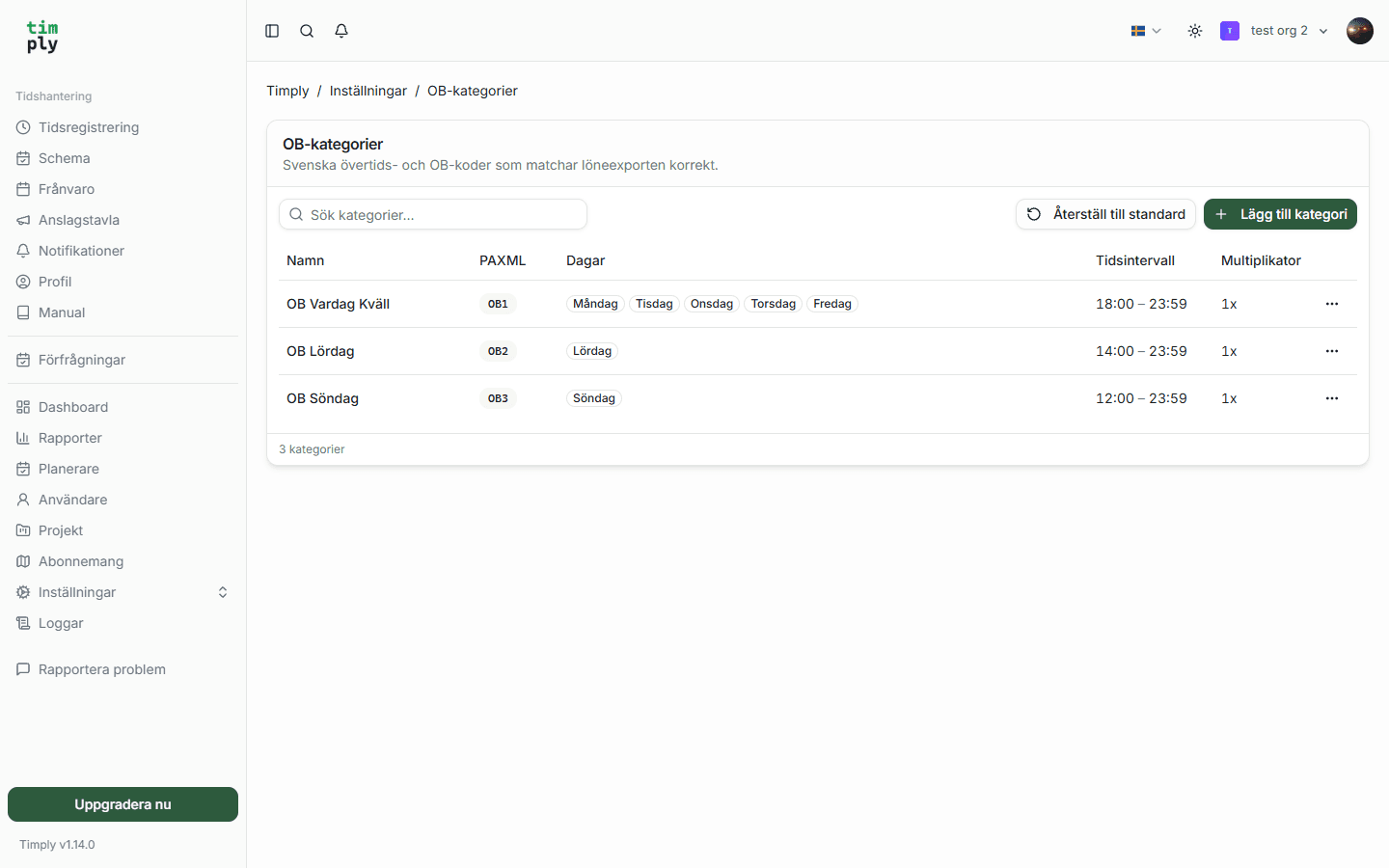
Every clock-in is compared against the OB categories you have set up, and the hours are divided between them at the minute the window opens.
A clock-in from 16:00 to 22:00 on a Tuesday, with a weekday evening window starting at 18:00, becomes six hours of ARB and four hours of OB1. The OB hours sit on top of the hours worked, which is what the payroll system expects. Timply also checks that OB hours never exceed the hours worked on the same day.
When an employee records overtime they choose between payment and time off in lieu at that moment. The choice becomes ÖT1 or ÖK1 in the file. For part-time employees Timply separates mertid, the hours somebody works above their contract but below full time, from overtime using their contracted hours per week, so MER is never mixed with ÖT1.
Absence gets its own entries
Absence is not a gap in the hours. It is its own row with its own code, at the extent that was approved, so a half day of care for a sick child arrives as half a day.
| Absence | Code |
|---|---|
| Sickness | SJK |
| Holiday | SEM |
| Care of a sick child | VAB |
| Parental leave | FPE |
| Time off in lieu taken | KOM |
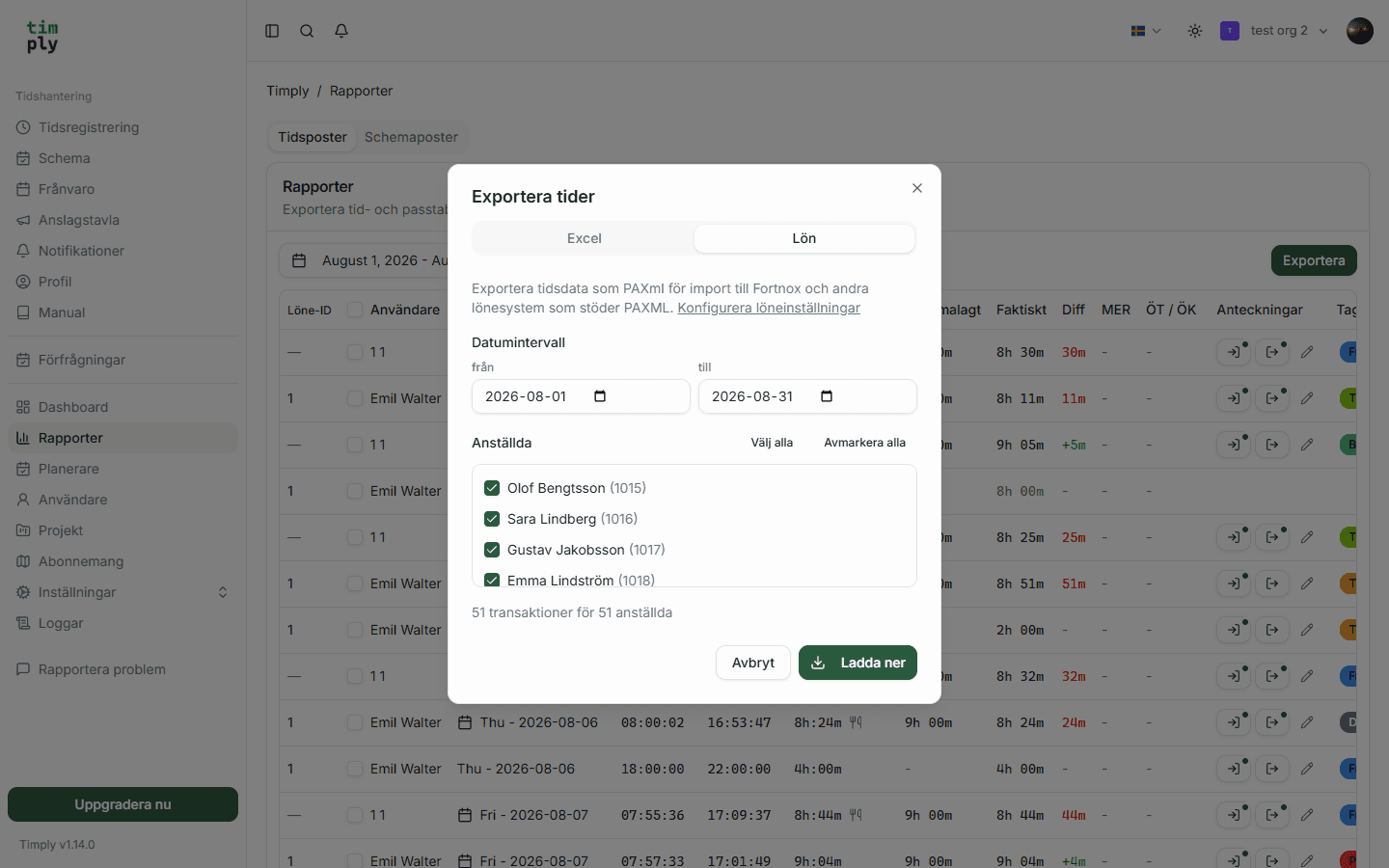
Making the export
- Pick the period. Any start and end date, so it follows your payroll run.
- Check the totals against the report in Timply.
- Download the PAXml 2.0 file.
- Import it into payroll and check the total against Timply's report before running the payroll.
Step four is not a formality. Read the total in both systems the first time you run a new period, because that is when an incorrect code setup on the payroll system's side shows up.
Timply calculates, you decide
Timply calculates from the rules you have entered, and is responsible for the calculation being correct and traceable back to a single clock-in. Which OB level applies to a given shift, and what it should be paid at, is decided by your collective agreement and by you.
Each category carries the payroll code its hours are booked to.
How it works in Timply
- Format
PAXml 2.0, the SLA standard Swedish payroll systems import
- Hours worked
Booked as ARB per employee and day
- OB
Split across OB1 to OB5 and OS1 to OS5 from your own categories
- Overtime
ÖT1 for paid overtime, ÖK1 for time off in lieu
- Mertid
MER, for part-time hours beyond the schedule and up to a full day
- Absence
SJK, SEM, VAB, FPE, FR1, PAP, FLX, PEM, KOM, PER and RE1
- Period
Any date range, so the file follows your payroll run whatever dates it uses
- Approval
The period is marked as approved in the file, so payroll sees the basis was signed off
We run the whole chain in Timply: the time clock, the schedule, leave and the payroll record.
Common questions
Which payroll systems can read the file?
Any system that imports PAXml 2.0, which includes Fortnox Lön, Visma Lön and Hogia Lön. Timply hands you a file and you import it, so this is a file transfer rather than a live connection between the systems.
Do we need to recalculate anything after importing?
No. Each hour is already split by code before the file is written, so the import carries finished figures.
What happens to part-time hours above the schedule?
Hours beyond the schedule and up to a full day are booked as mertid with the code MER, and hours above that as overtime with ÖT1 or ÖK1. Timply treats full time as 40 hours a week, and you set the contracted hours per week on each employee.
Can we export a period that is not a calendar month?
Yes. You pick the start and end dates, so the file follows the period your payroll run actually uses.
Which plan includes the export?
Pro and Enterprise. Time reporting and the clock are in Core, and the payroll file is where Pro begins.
More features
OB, split by the hours and weekdays you set
You enter the windows your collective agreement uses. Timply divides every clocked hour between them and books each part to the payroll code it belongs to.
Overtime or time off in lieu, chosen when the hours are recorded
The employee picks payment or time off at the moment the overtime is recorded, and the choice carries through to the payroll file as ÖT1 or ÖK1.
Leave requests and absence, with a decision that is recorded
Staff request leave and report sickness in the app. A manager approves, and the absence goes to payroll with its own code and the extent that was approved.
Reports with a column per figure, and an Excel export
One row per day and employee, with scheduled time, worked time, the difference, mertid, overtime, time off in lieu and a column per OB category.
This feature is part of Timply's system for scheduling, time tracking and payroll files. See all features
Try Timply with your own staff
Set it up yourself with your real schedule and your real staff. If you would prefer someone to walk you through it, book a demo.
- Trial
- 14 days
- Credit card
- Not required
- Refund
- Within 30 days of purchase