

Reports with a column per figure, and an Excel export
One row per day and employee, with scheduled time, worked time, the difference, mertid, overtime, time off in lieu and a column per OB category.
- Part of
Payroll and export
- Included in
Core · Pro · Enterprise
- Available on
Browser
What you get
The figures come out already separated, with no rearranging needed.
Any period can be read, whatever dates your payroll run uses.
The export opens in Excel with the columns intact.
Already separated
A report that hands back a single total leaves the work undone. The figures that matter are separate from each other: what was scheduled, what was worked, what the difference was, and how the hours divide between ordinary time, mertid, overtime and each OB category.
Timply puts each of those in its own column, one row per day and per employee. Mertid is the hours a part-timer works above their contract, and OB is the Swedish unsocial-hours premium. Both get columns of their own, and the OB columns carry the names you gave the categories rather than the codes.
Any period
The report takes a start date and an end date. That sounds minor until your payroll period stops lining up with the calendar month, which happens often enough that assuming otherwise is a real limitation.
Hours against a job
In Pro, time is recorded against a project with participants, and the report shows the hours per project, per client and per person. A consultancy reads the same week two ways: as an employee's working time, and as hours drawn down on a client.
Two exports, two purposes
Excel is for reading, checking and sending to somebody who wants to look at the numbers. The PAXml file is for importing into a payroll system. They come from the same figures, so a total checked in one holds in the other.
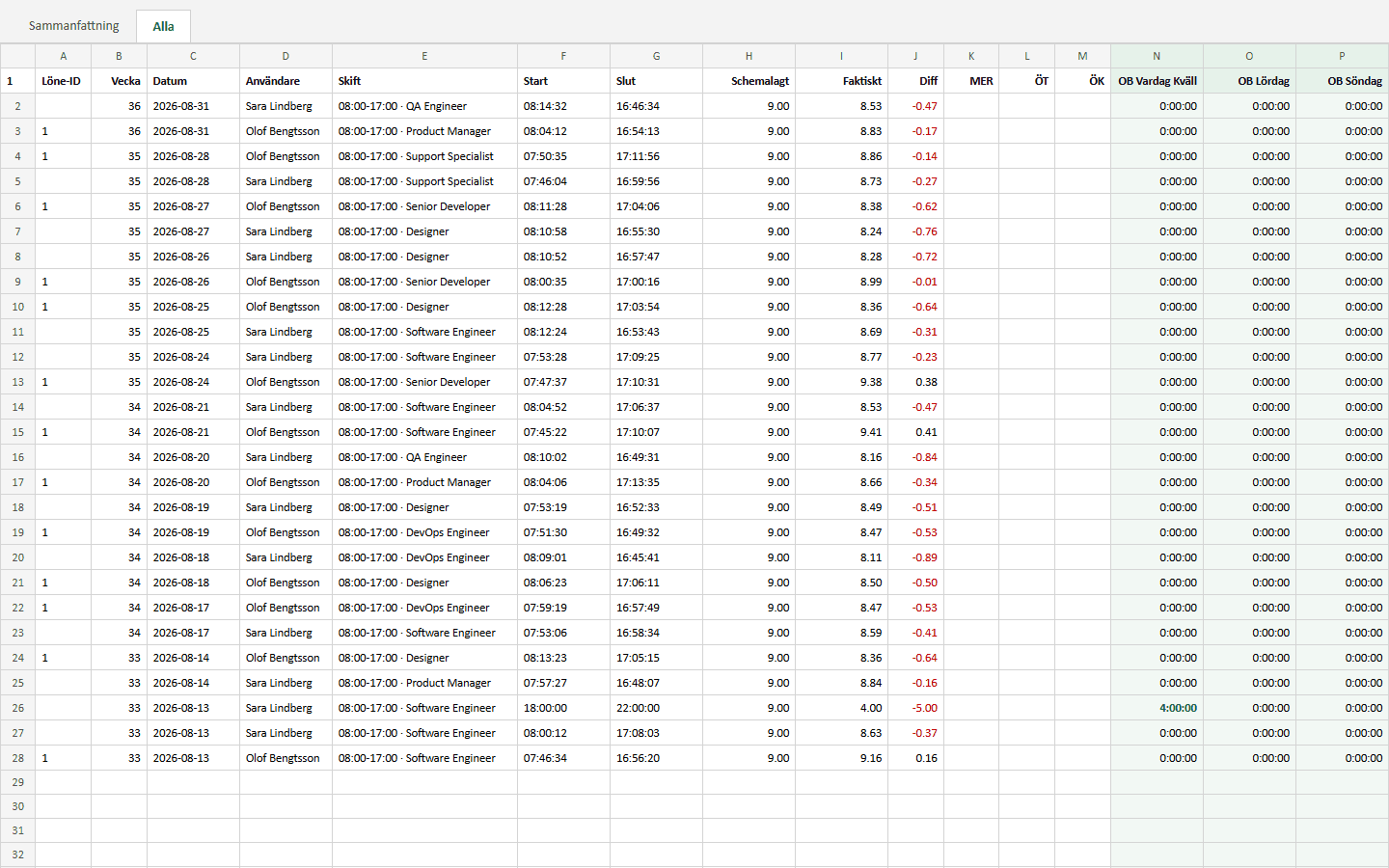
How it works in Timply
- Row
One per day and employee
- Columns
Scheduled, worked, difference, mertid, overtime, time off in lieu
- OB
A column per category, named as you named it
- Period
Any date range
- Filter
By employee, by department and by project
- Project
Hours per job, per client and per person
Pro - Export
Excel, with the columns and the number formats intact
Common questions
Can we choose the period?
Yes, any start and end date. The report follows your payroll period, whether or not it lines up with the calendar month.
Does the export need rearranging before it is usable?
No. Each figure has its own column, so the numbers can be read or summed directly.
Can we see hours per project?
In Pro. A job is set up as a project with participants, and the report shows the hours per project, per client and per person for the chosen period.
What formats can we export to?
Excel for reading and checking, and PAXml 2.0 for importing into a payroll system.
Is OB shown separately?
Yes, one column per category, labelled with the name you chose for it.
More features
Time reporting with scheduled and actual hours on the same row
One row per employee and day, with the hours scheduled, the hours worked and the difference between them. Deviations are visible the same day rather than at the end of the month.
A payroll file your payroll system imports without rework
Worked hours, OB, overtime, mertid and absence are totalled per employee and given the right payroll code. You download a PAXml 2.0 file and import it.
OB, split by the hours and weekdays you set
You enter the windows your collective agreement uses. Timply divides every clocked hour between them and books each part to the payroll code it belongs to.
Holiday under the Swedish Annual Leave Act, per employee and holiday year
Timply keeps each employee's holiday year, paid and unpaid days, days saved from earlier years and manual adjustments.
This feature is part of Timply's system for scheduling, time tracking and payroll files. See all features
Try Timply with your own staff
Set it up yourself with your real schedule and your real staff. If you would prefer someone to walk you through it, book a demo.
- Trial
- 14 days
- Credit card
- Not required
- Refund
- Within 30 days of purchase